Settings Presets
Overview
Settings presets are a powerful tool for developing and managing device configurations. Settings presets allow you to save the configuration of a device or device group to load onto the devices later. Presets allow you to fine tune the configuration of your device and save versions to revert to, and they make it easy to apply a consistent configuration across your fleet.
Backwards Compatibility
All preset versions are supported, it is recommended to save new presets after applying a preset to your device to upgrade the preset format to take advantage of the new features.
Settings Presets received a major upgrade in Configurator 1.14. This documentation is not relevant to older Configurator versions.
Groups
Since Configurator version 1.14 presets now fully support device groups. When generated from a device group a grouped preset will be created. A grouped preset will contain all the filtered settings for each group member, this means group and per-unit settings can be configured per device.
Which preset is applied to which group member is based on the group position or in the case of 4in1s, the device index.
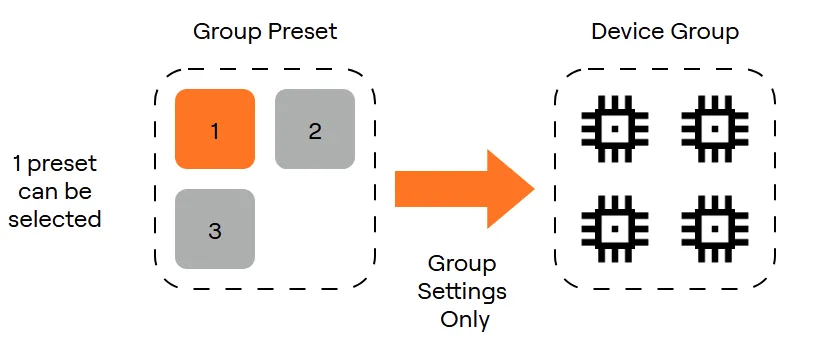
To apply a group preset to a group the group size and preset size must exactly match, otherwise only 1 of the presets in the group preset can be applied and only the group settings of that preset can be applied.
Mapping sub-presets to devices
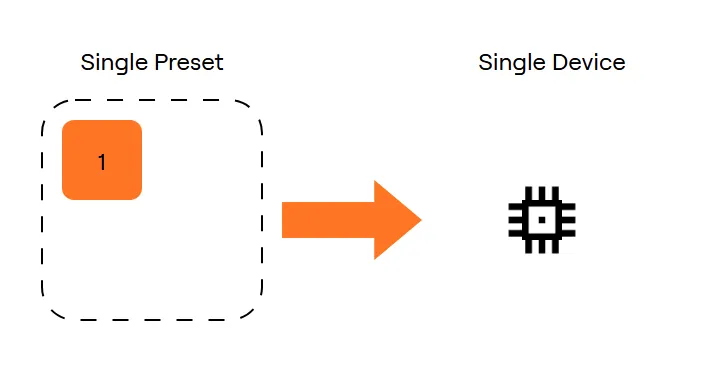
Single preset to single device
When applying a single preset to a single device the preset can be fully applied.
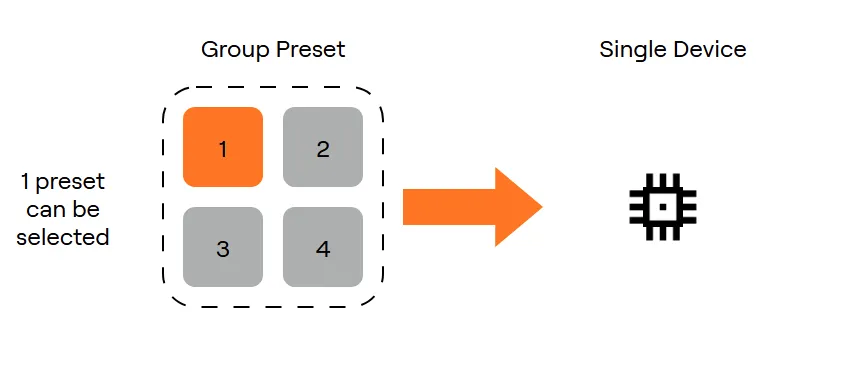
Group preset to a single device
When applying a group preset to a single device one of the sub-presets can be selected and be fully applied to the device.
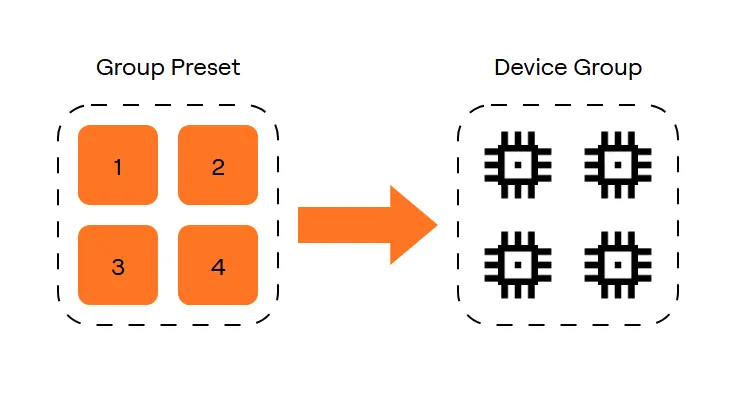
Group preset to device group of equal size
When applying a group preset to a device group of equal size all presets can be fully applied based on device index or group position.
Group preset to device group of different size
When the number of sub-presets a group preset does not match the size of a device group you can select which of the sub-presets to apply, only the group settings can be applied.
Single Preset to Device Group
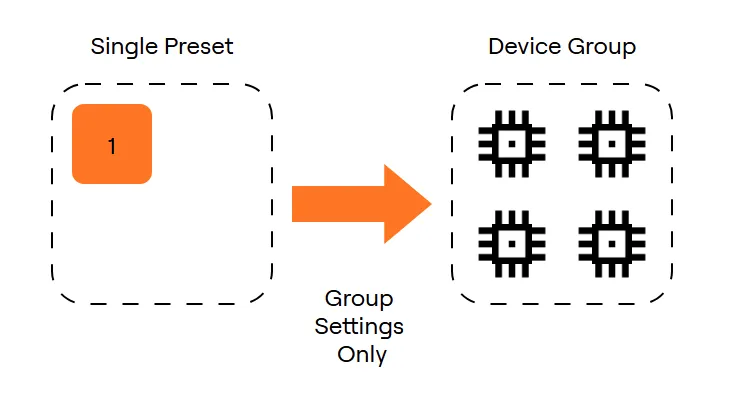
When applying a single preset to a device group only the group settings will be applied.
Compatibility
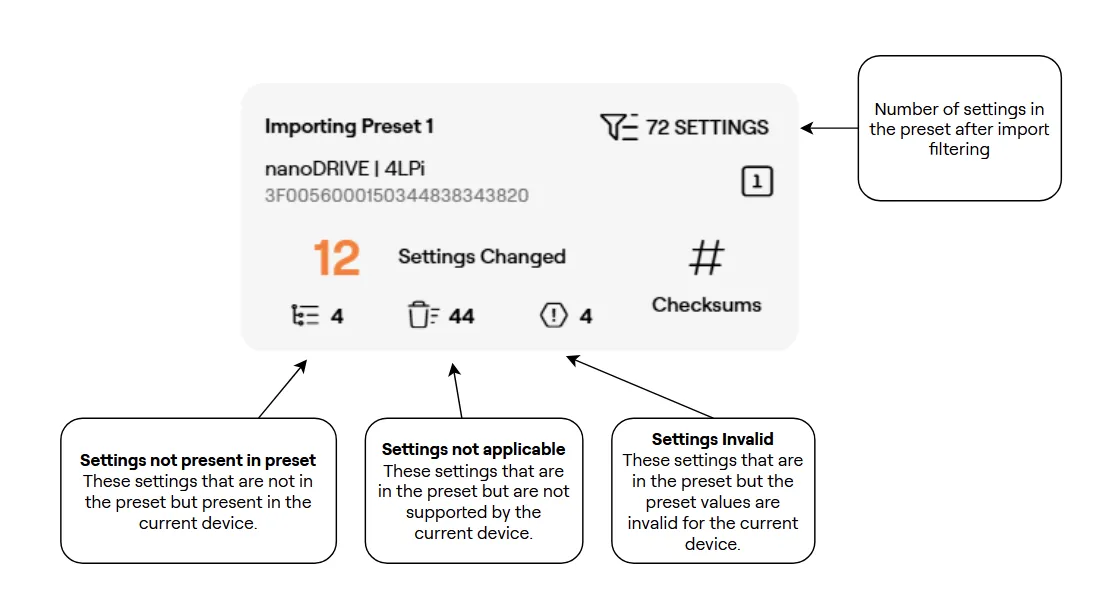
Settings presets are no longer checked for compatibility based on hardware and software revisions. When applying a preset, the Configurator will display what settings will change and what settings in the preset are not applicable/compatible with the device and any settings that are on the device but not in the preset. It is important to confirm that the settings being applied will work correctly across firmware versions when applying the preset.
After applying the preset and saving settings it will be possible to generate a new preset to upgrade to the new firmware version.
When importing a preset, the following information describing compatibility will be displayed, they can be clicked on for more information:
Protected Settings
In certain cases where advanced tuning is required Hargrave Technologies may send you a preset that contains protected settings. Protected settings can only be applied when the firmware version of the device exactly matches the preset. A checkbox must be ticked to apply protected settings.
Any presets that aren’t generated by Hargrave Technologies cannot contain protected settings, if you apply a preset with protected settings, modify settings and save a new preset it will not contain the protected settings.
Verifying Preset Application
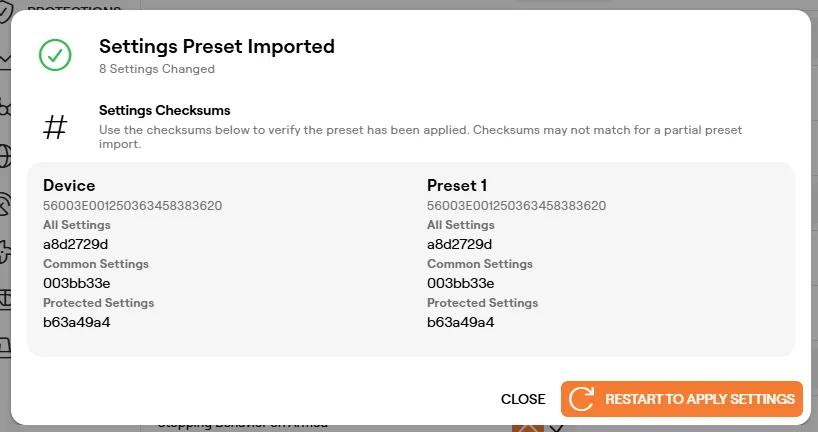
After applying a preset and saving settings, the settings checksums of the device and the preset that was applied will be displayed. Settings checksums are a quick way to ensure that the configuration is the same across devices. If the checksum is the same between the device and preset then that category of settings is the same.
Settings checksums may not match if a preset has been partially applied or did not contain all settings. Settings checksums may also be different if the preset was generated on a different firmware version to the device.
Usage
Generating a Settings Preset
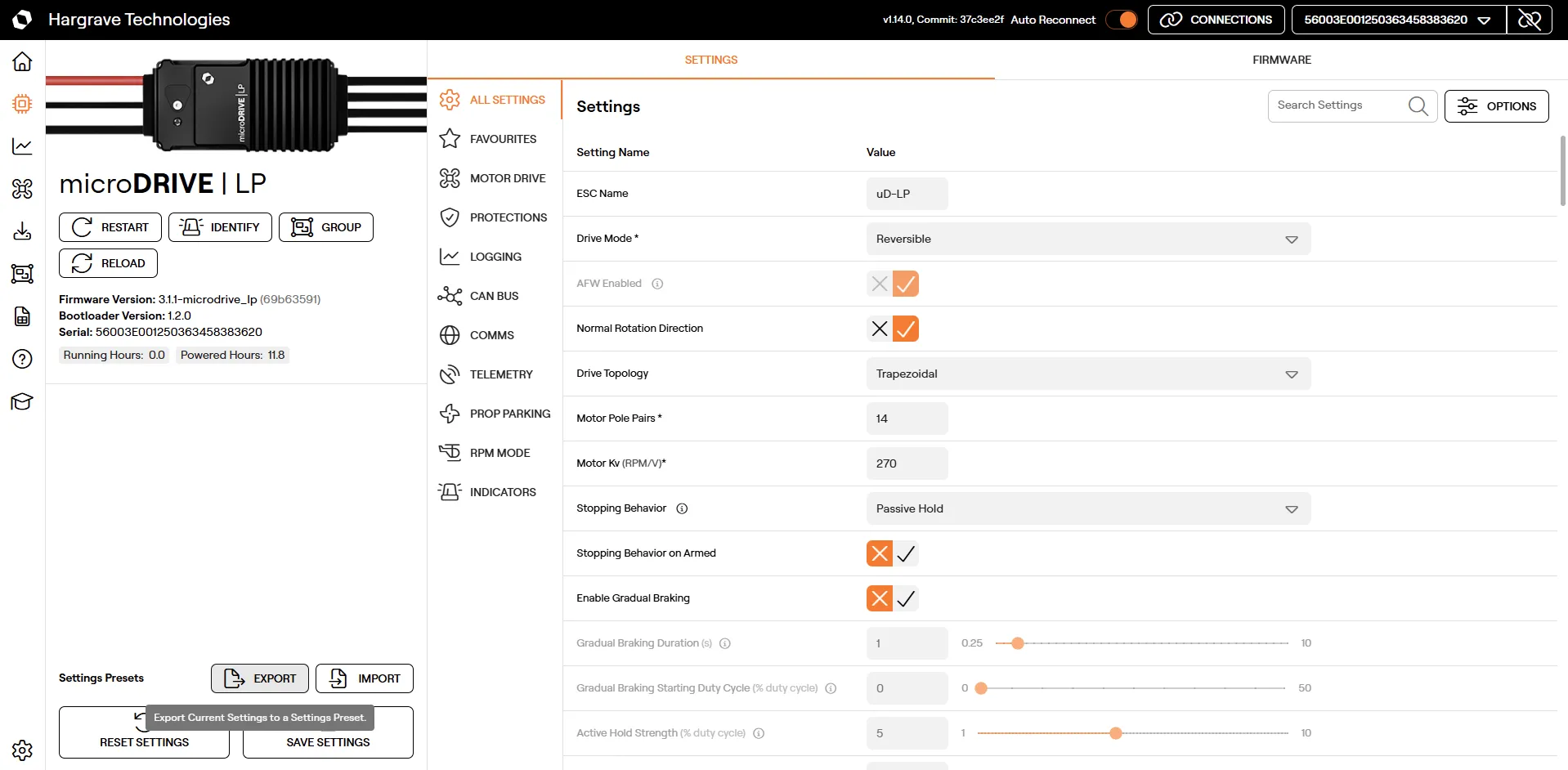
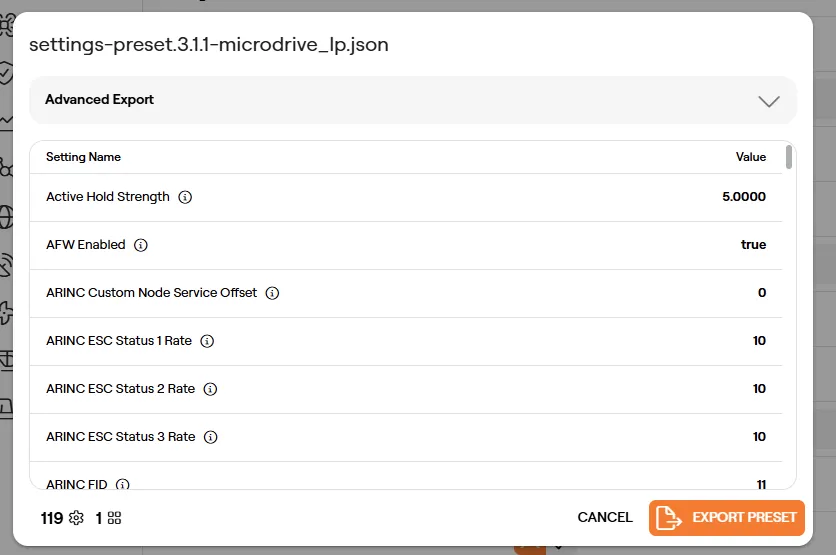
Once settings have been saved to a device or device group a settings preset can be exported by clicking the ‘Export’ button in the bottom left of the device page when the settings tab is active.
The export dialog will open, the name of the preset is displayed at the top and can be modified. In the bottom left a summary of how many settings are contained in the preset and how many preset groupings are in this preset.
Click on ‘Export Preset’ to save the preset to your computer.
Applying a Settings Preset
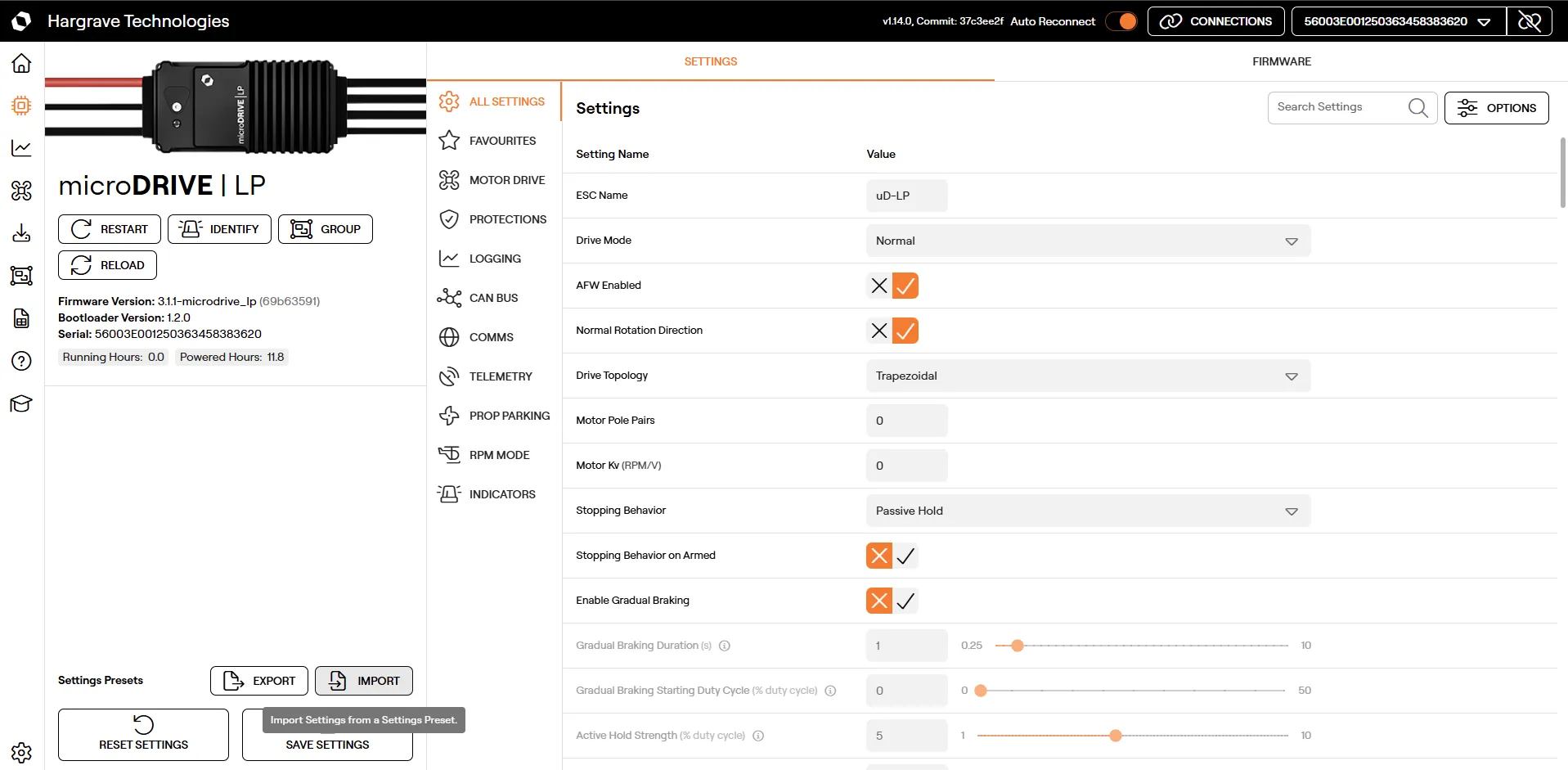
To apply a settings preset to a device or a device group click the ‘Import’ button in the bottom left of the device page when the settings tab is active and select the correct preset file. Alternatively you can drag and drop a valid preset file onto the page.
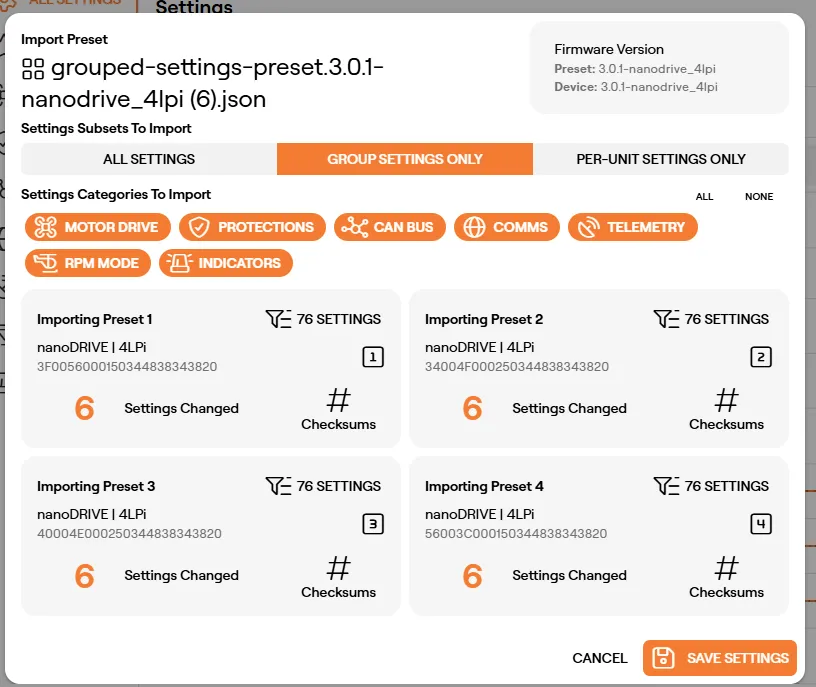
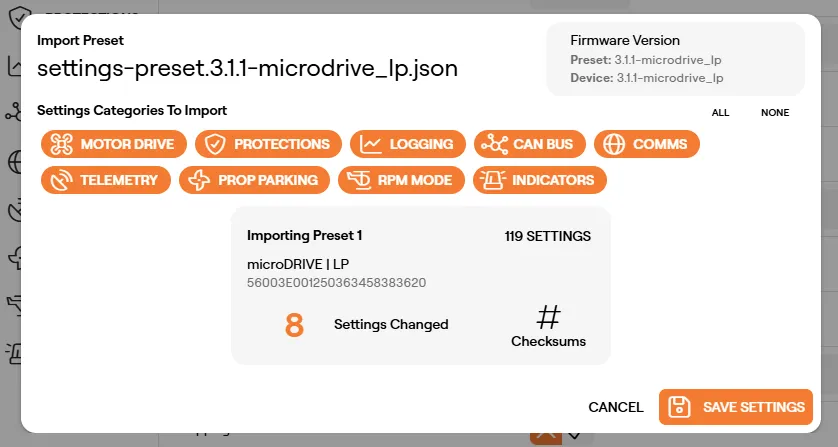
The preset import dialog will be displayed. This displays information about the preset, options for filtering the preset import and a summary of changes applied to each device. You can select the changed settings, checksums or number of settings in preset to view details.
Click ‘Save Settings’ to apply the preset. The checksums will then be displayed to confirm the preset was applied correctly, you can choose to close the dialog and continue configuring your device or restart to fully apply the settings changes.
Advanced Usage
Partial Presets
A setting preset does not need to contain all settings from the device. Creating a partial preset can be useful to apply only relevant settings changes without impacting other configuration areas. For example, if you are tuning a motor controller it may be useful to only save the ‘Motor Drive’ settings so that settings such as communications and telemetry aren’t affected when applying to different units which may be in different testing setups.
There are several ways to achieve partial presets, a preset can be exported without all settings, or settings can be filtered when importing from a preset.
Modified Settings Only
When the preset export dialog is open, you can expand ‘Advanced Export’ to get access to export filtering. You can choose to export all settings or only the settings that have been modified, i.e. settings that currently have a non-default value.
Exporting modified settings only can be useful when using a preset across firmware versions as only the relevant settings are included.
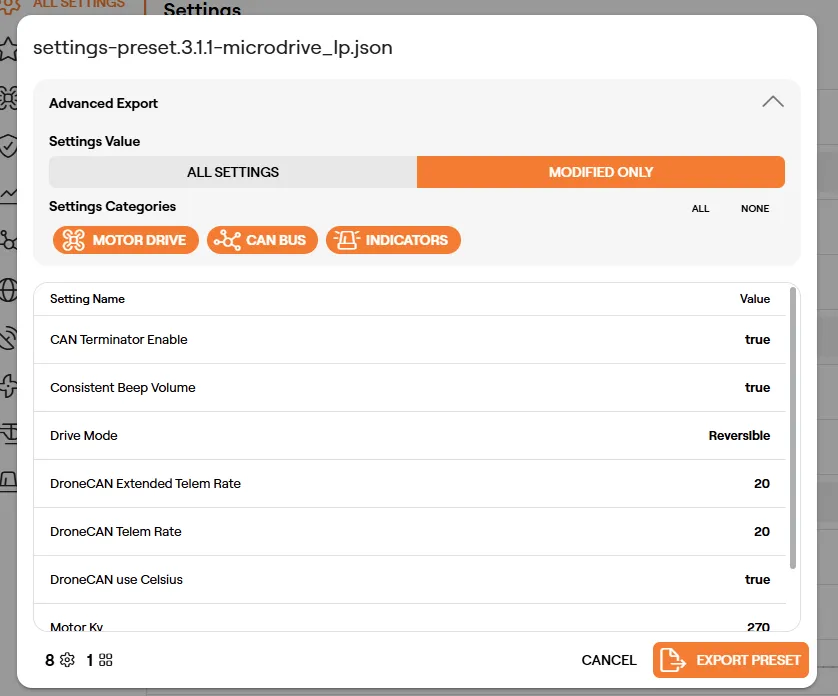
Filtering by Settings Category
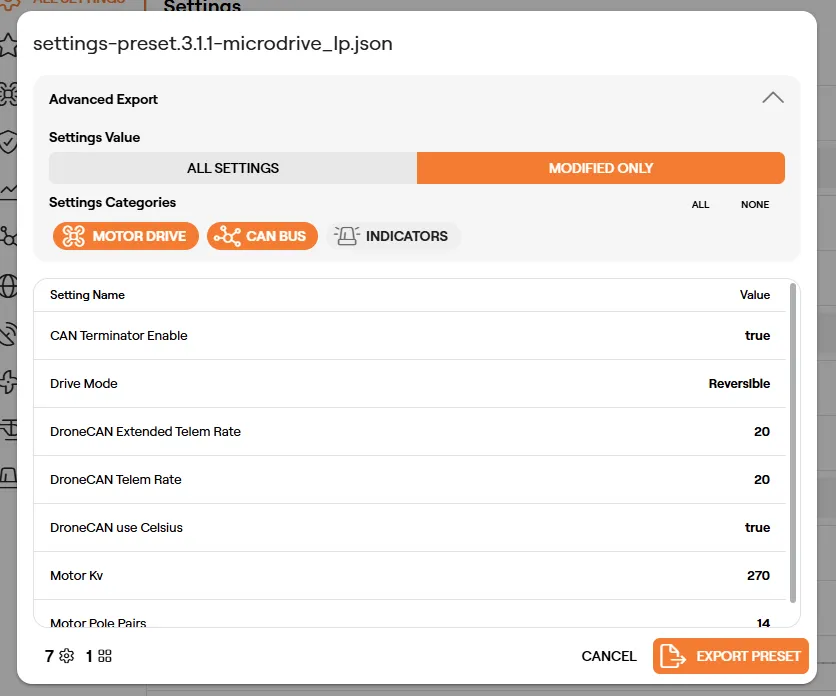
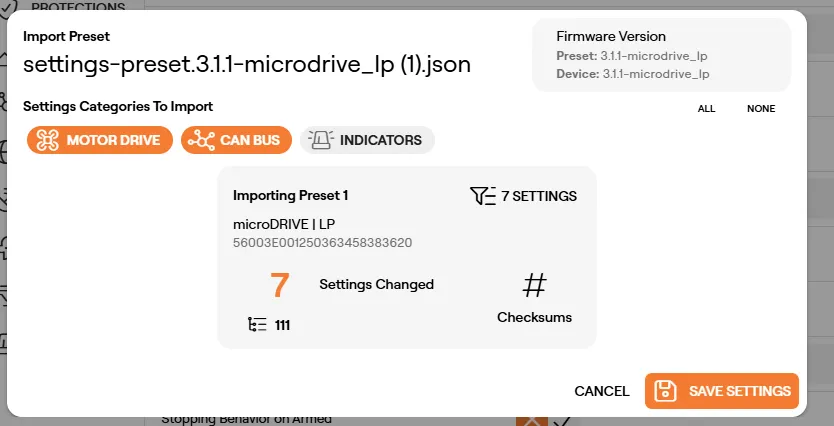
On export or import the settings can be filtered by the settings category they are in. Some settings are in more than one category and the settings list should be checked to confirm which settings are included.
In this case if we de-select the ‘Indicators’ category on export, the beep related setting is filtered out.
Alternatively we could leave all the categories in the preset and filter out the indicators settings on import:
Filtering by Settings Subset
For grouped presets the settings can be filtered based on if they belong to the ‘Group Settings’ subset or the ‘Per-Unit Settings’ subset. Filtering based on subset can make it easier to not make unwanted changes to groups that may be in different setups, such as applying the same drive tuning without impacting rotation direction settings.
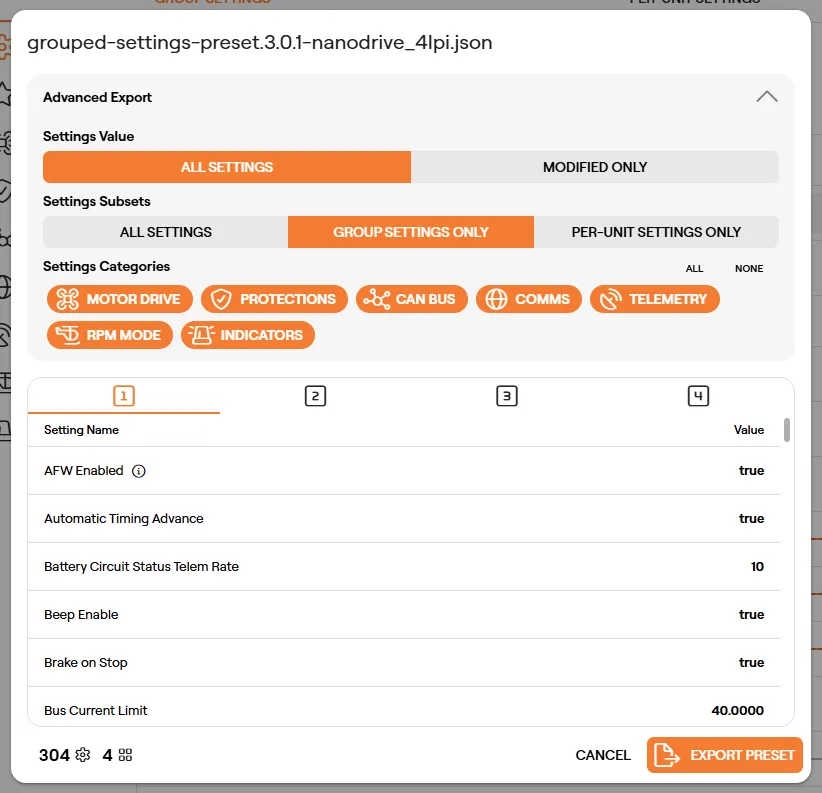
The settings can be filtered by subset on import as well. The subset selection will be locked to ‘Group Settings Only’ when importing a single preset to a group.